How to Stop Spam Emails for Good (2026)
45% of all email is spam. This guide shows how to stop spam emails for good — report, block, filter, and use aliases to cut inbox noise permanently.

You've blocked senders. Clicked unsubscribe. Reported messages as spam. And somehow, next week, there's more of it. Different addresses. Same promotions. Same cold pitches. Same fake invoices.
Spam doesn't stop because you blocked someone. It stops because you built a system.
According to Kaspersky's 2025 spam and phishing report, 44.99% of all emails sent worldwide were spam last year. The same report found that mail antivirus tools blocked over 144 million malicious email attachments. The Anti-Phishing Working Group's Q4 2025 phishing report recorded 853,244 phishing attacks in a single quarter, and the FBI's 2025 Internet Crime Report noted over one million cybercrime complaints, with phishing and spoofing among the most frequently reported.
This isn't a "just filter better" problem. Nearly half of all email sent on the internet is garbage. Your job is to make sure as little of it as possible reaches you, and that the stuff that does gets handled correctly.
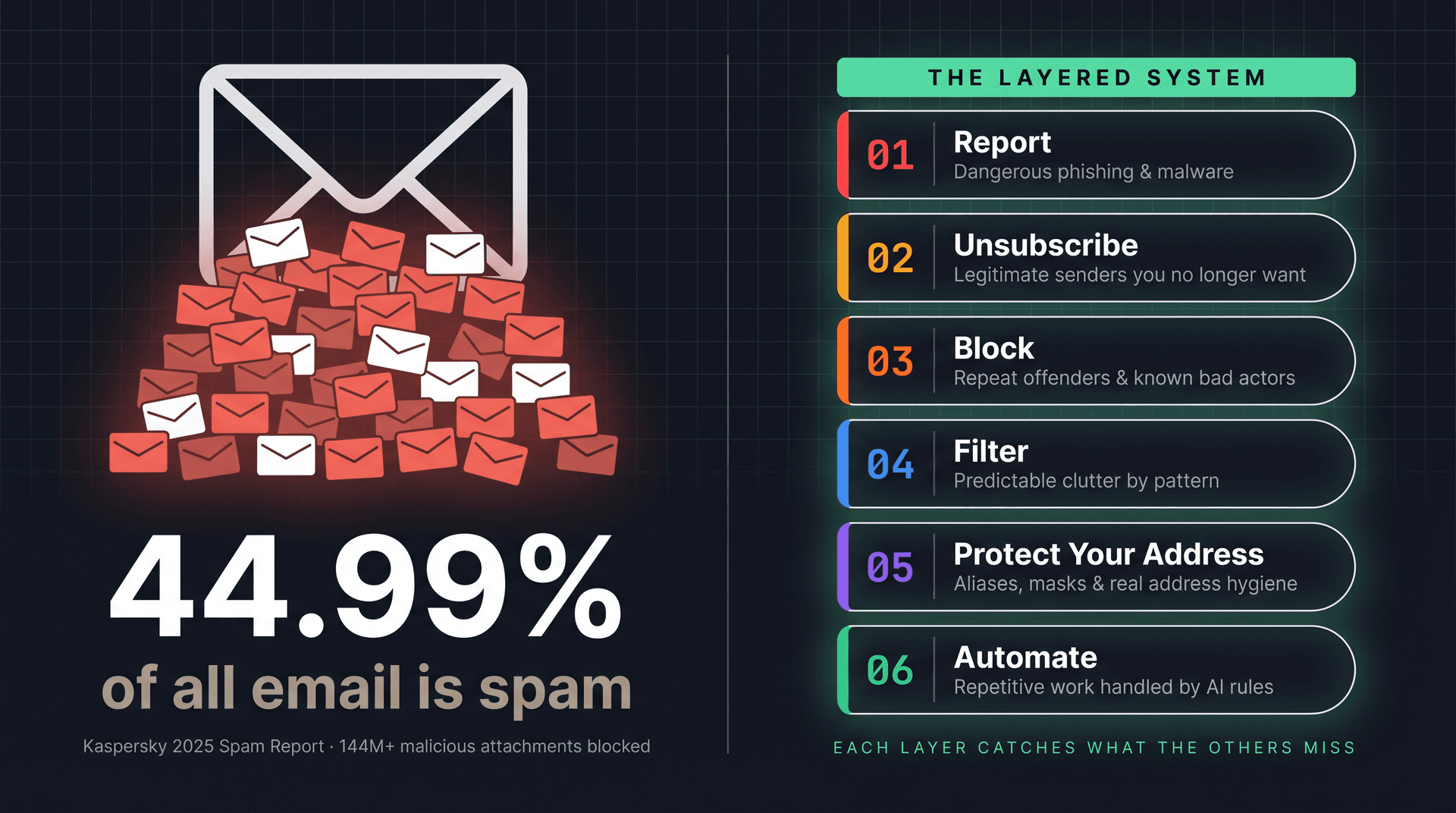
The core insight: Spam needs a layered system, not a single fix. Report what's dangerous. Unsubscribe from what's legitimate. Block repeat offenders. Filter predictable clutter. Protect your real address. Automate the repetitive work.
This guide shows you exactly how to do that in Gmail, Outlook, Apple Mail, Yahoo Mail, and Proton Mail. It also covers how tools like Inbox Zero can automate the parts that drain your time every single day.
Why Spam Keeps Coming Back (And How to Actually Stop It)
Most people call every unwanted email "spam," but that word covers about six completely different situations. Each one requires a different response. Using the wrong response (blocking when you should report, unsubscribing when you should delete, deleting when you should report phishing) either wastes your effort or actively makes things worse.
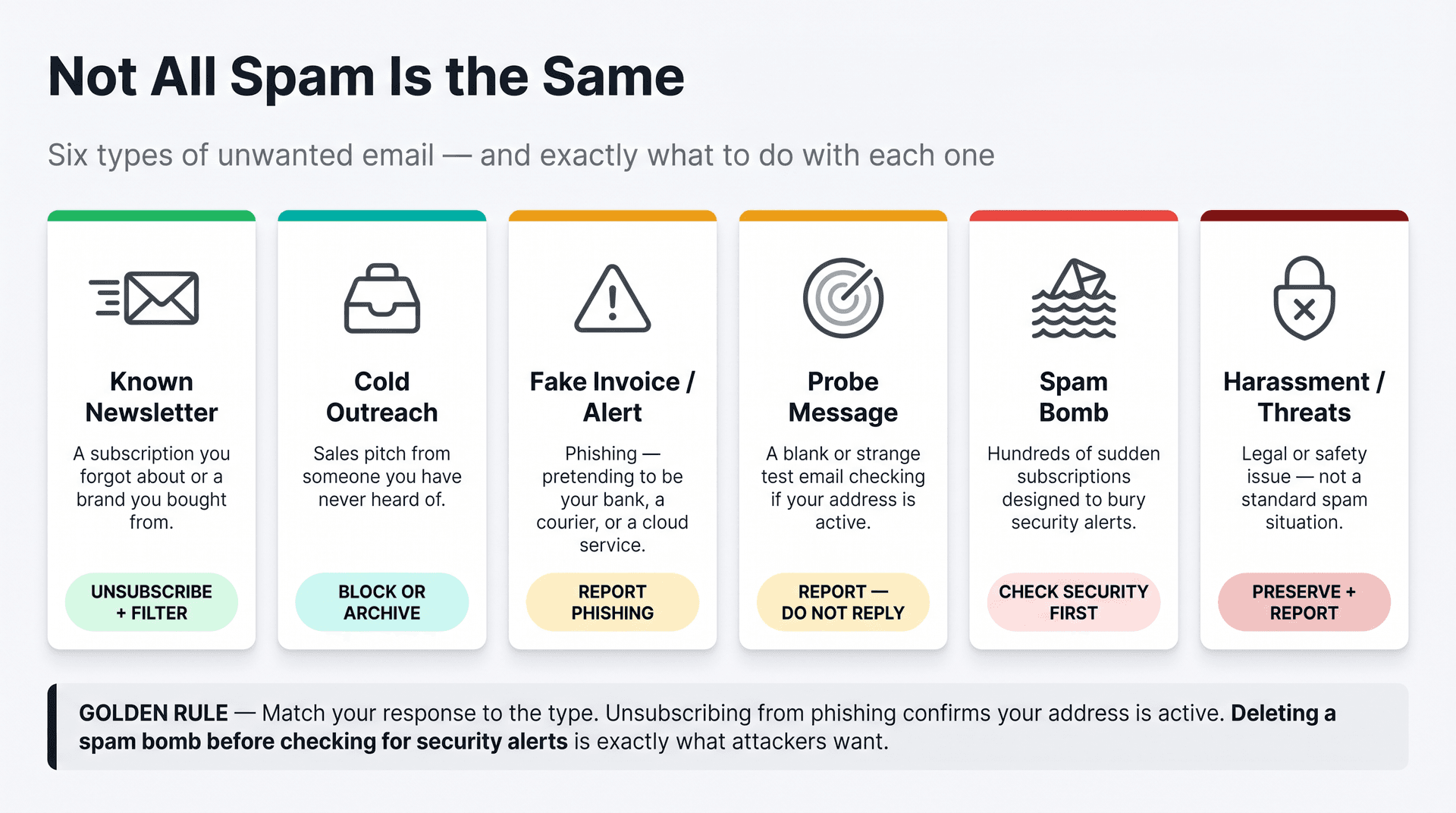
Here's a quick typology:
| What you received | What it usually is | Best action |
|---|---|---|
| Newsletter from a brand you recognize | A subscription you forgot about or a company you bought from | Use the provider's unsubscribe control, then filter if needed |
| A sales pitch from someone you don't know | Cold outreach from a company or individual | Block, label, archive, or use a cold-email blocker |
| Fake invoice, password alert, delivery notice, bank warning | Possible phishing or malware | Report phishing, delete, do not click anything |
| A blank email or strange "test" message | Spammers checking if your address is active | Don't reply; report spam or phishing |
| Hundreds of random subscriptions arriving suddenly | A spam bomb designed to bury security alerts | Search for security alerts first, then run a security checkup |
| Harassment, threats, extortion | Safety or legal issue, not just spam | Preserve evidence; report to provider and local authorities |
Google warns specifically about that fifth row: a sudden flood of unwanted emails can be a "spam attack" designed to hide important security alerts (like a bank warning or password reset) in the noise. If your inbox is suddenly overwhelmed with garbage, don't mass-delete. Search for security alerts first.
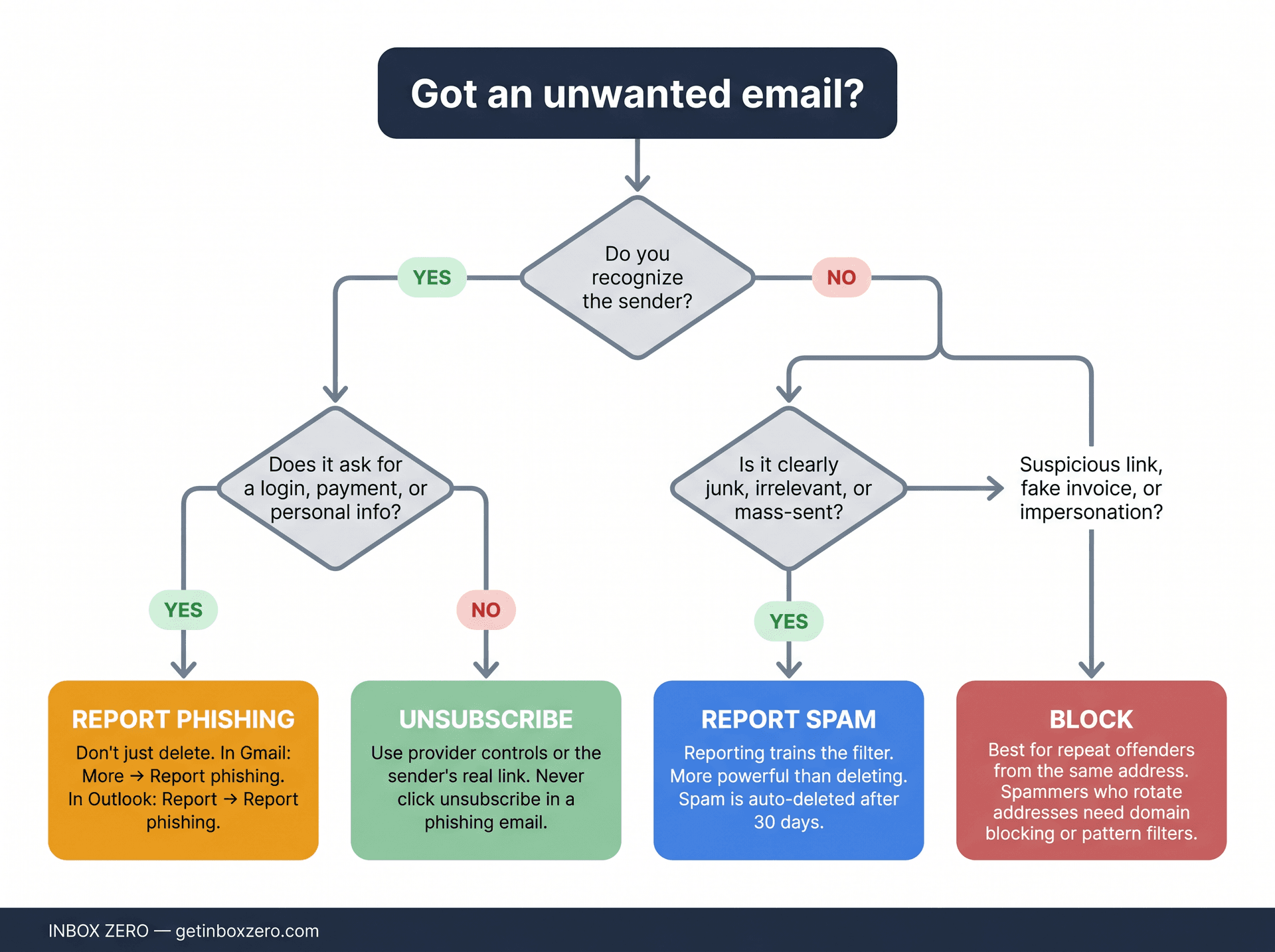
The biggest mistake is treating all of these the same. Unsubscribe from legitimate subscriptions. Report and delete suspicious phishing. Filter predictable clutter. Block persistent senders. And never delete before you've handled the security risk. This works best when you treat it as a layered email management system rather than a set of one-off fixes.
Unsubscribe, Block, or Report? What to Do with Every Type of Spam
Unsubscribe When the Sender Is Legitimate
If the email is from a real company you recognize (a newsletter, a promotion, a community update), unsubscribe through your email provider's built-in tool or the sender's real unsubscribe link.
Gmail's Manage Subscriptions lets you manage active mailing lists in one place. When you unsubscribe there, Gmail unsubscribes you from all active mailing lists related to that sender (though the feature is still rolling out and may not be available to everyone yet). Outlook.com's Subscriptions view works similarly: it looks for subscription identifiers in message headers and gives you a place to manage or block those senders.
One rule: only use unsubscribe links from senders you recognize. Don't click unsubscribe in a phishing email. That's how you confirm your address is active. For senders who refuse to stop emailing even after you unsubscribe, there are more aggressive options covered later.
When to Report Spam (vs. Just Deleting It)
Reporting is more powerful than deleting because it trains the filter. In Gmail, reporting spam sends a copy to Google for analysis, and messages move to Spam and get deleted after 30 days. In Yahoo, marking email as spam helps Yahoo's system learn that messages from that sender are not good, improving future recognition.
Use report spam (not just delete) whenever a message is clearly junk, irrelevant, or mass-sent from a sender you don't recognize.
How to Report Phishing Emails
Phishing emails pretend to come from your bank, a delivery company, cloud storage, your employer, or someone you know. They want you to click a link, open an attachment, log in somewhere, or send money. Microsoft describes phishing as email that appears legitimate but is trying to get your personal information or steal your money.
Report phishing, don't just delete it. The report helps providers improve filters for everyone.
In Gmail: open the message, click More next to Reply, then Report phishing.
In Outlook: select the message, then Report > Report phishing.
When to Block a Sender (And When It Won't Work)
Blocking is useful for persistent senders who keep emailing from the same address. In Gmail, blocked senders go directly to Spam for future messages. In Outlook, blocked addresses move directly to Junk Email.
Blocking is a blunt instrument. It works well for repeat offenders, but spammers who rotate addresses will just come back from a new one. For those cases, consider blocking an entire domain when the same company or service keeps reaching you from different addresses. For botnets and rapidly rotating sources, a combination of reporting and pattern-based filtering works better.
How to Stop Spam Emails in Gmail
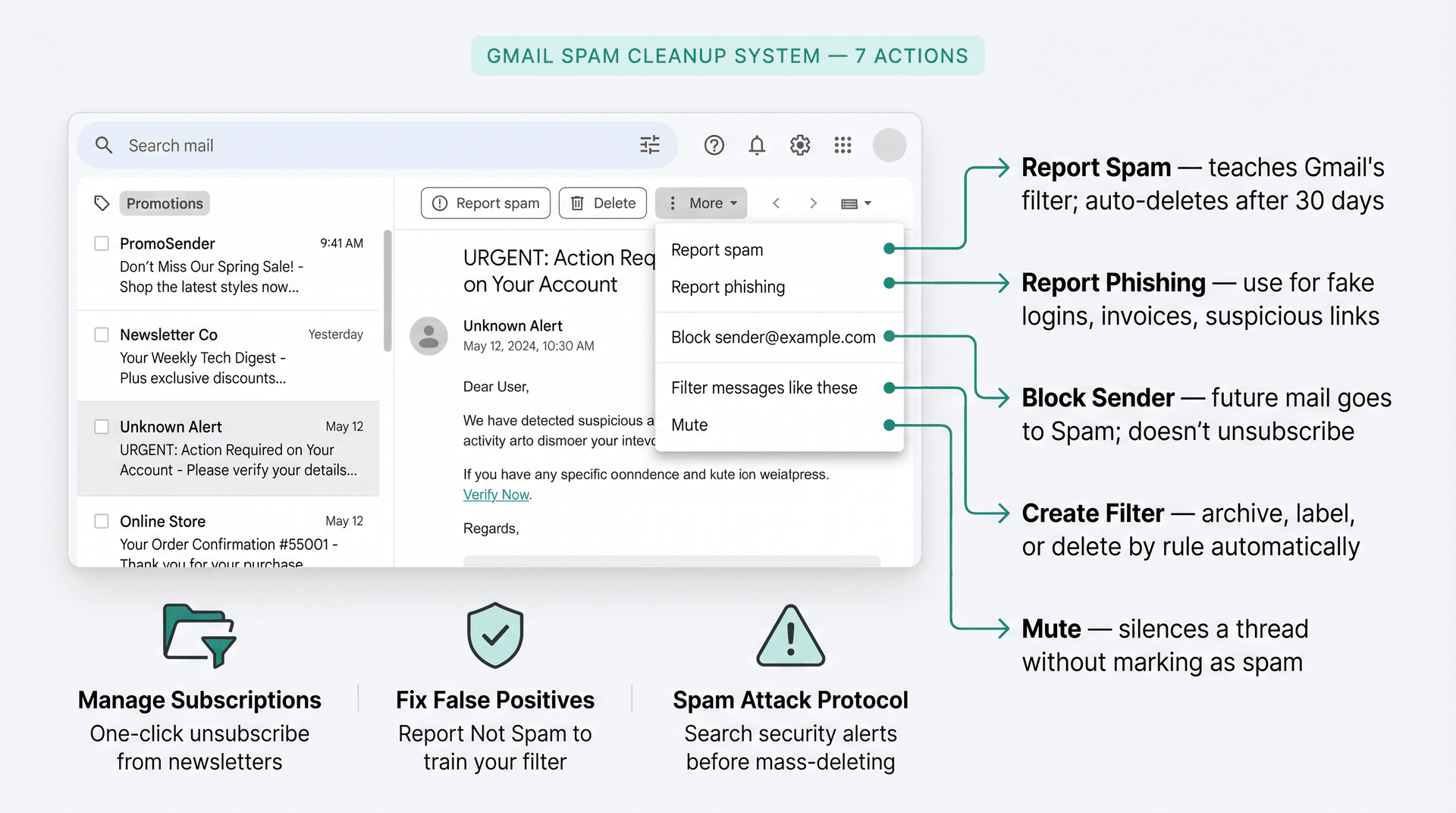
Gmail already blocks more than 99.9% of spam, phishing attempts, and malware before it reaches you, and its AI-enhanced spam filtering blocks nearly one crore spam emails every minute. But some still gets through. Here's the complete Gmail cleanup system.
1. Report Spam in Gmail
On desktop:
-
Open Gmail.
-
Select one or more unwanted emails.
-
Click Report spam at the top.
Google says that when you report spam or move email into Spam, Google receives a copy and may analyze it to help protect users. Messages marked as spam are automatically deleted after 30 days.
Use Report spam instead of only deleting. Over time, this teaches Gmail's filter what belongs in your inbox.
2. Report Phishing in Gmail
Use this for fake login alerts, fake invoices, suspicious attachments, or any message asking for personal information.
On desktop:
-
Open Gmail.
-
Open the suspicious message.
-
Next to Reply, click More.
-
Click Report phishing.
Google's phishing guidance recommends also checking whether the sender name and email address match, hovering over links before clicking, and reviewing message headers when something looks off.
Don't forward or reply to suspicious messages.
3. Block a Sender in Gmail
For senders that repeatedly email you from the same address:
-
Open the message.
-
Click More next to Reply.
-
Click Block [sender].
Gmail sends future mail from that address to Spam. Note: blocking a sender does not unsubscribe you from their mailing list. It just filters future mail. If they're a legitimate sender you don't want to hear from, unsubscribe first, then block if they continue.
4. Use Gmail's Manage Subscriptions for Newsletter Clutter
If newsletters are the main problem:
-
Open Gmail.
-
In the left sidebar, click More.
-
Click Manage subscriptions.
-
Next to a sender, click Unsubscribe.
Gmail notes it can take a few days for the sender to process the unsubscribe. If you keep getting email after that, mark as spam and block.
5. Create Gmail Filters for Predictable Clutter
Filters are best for recurring, low-risk patterns: receipts, social notifications, newsletters you want to keep but not see in your inbox, shipping updates, automated alerts. Understanding how labels work in Gmail before building filters helps you design rules that stay organized as they accumulate.
In Gmail:
-
Click the search options icon in the search bar.
-
Enter your criteria (sender, subject words, size, attachment status).
-
Click Create filter.
-
Choose an action: apply a label, skip inbox (archive), delete, mark as read, or star.
-
Click Create filter.
Google says Gmail filters can send incoming mail to a label, archive it, delete it, star it, or automatically forward it.
Useful Gmail filter ideas:
| Goal | Filter idea | Suggested action |
|---|---|---|
| Move receipts out of inbox | From receipt/order senders or subject contains "receipt" "invoice" "order" | Label Receipts, skip inbox |
| Keep newsletters out of the way | list:(*) or known newsletter senders | Label Newsletters, skip inbox |
| Silence social notifications | From social platform notification addresses | Label Social, mark read, archive |
| Catch repeated spam phrases | Repeated phrase in subject | Label Spam Review, skip inbox |
| Protect VIP messages | From your bank, employer, or key clients | Star, label, never send to Spam |
You can also take this further by auto-labeling emails by sender domain, which is useful when an entire company's email should land in the same folder automatically.
Be careful with auto-delete rules. For anything financial, legal, account-related, or security-related, archive and label first. Delete only after you trust the filter completely. If your filters stop working as expected, our Gmail filters troubleshooting guide covers the most common causes.
6. Fix False Positives in Gmail
If a legitimate email ends up in Spam, open it and click Report not spam. Gmail says that if you remove an email from Spam after mistakenly reporting it, future emails from that sender won't go to Spam.
If an important sender keeps getting flagged, create a filter for them and choose Never send it to Spam. Use this carefully.
7. Handle a Gmail Spam Attack
If your inbox suddenly gets flooded with random subscriptions or junk mail, don't mass-delete everything immediately.
Gmail warns that hackers may flood your inbox to hide important security alerts. Before cleaning up the spam:
-
Search Gmail (including the Spam folder) for terms like:
security alert,password reset,new login,bank,payment,order,invoice,verification,changed,recovery. -
Check bank, payment, shopping, and password manager accounts directly.
-
Then report the spam flood and create temporary filters for the pattern.
How to Stop Spam Emails in Outlook
Outlook has several layers working together: Junk Email filtering, phishing reporting, blocked senders, safe senders, a subscriptions manager, Sweep, and inbox rules.
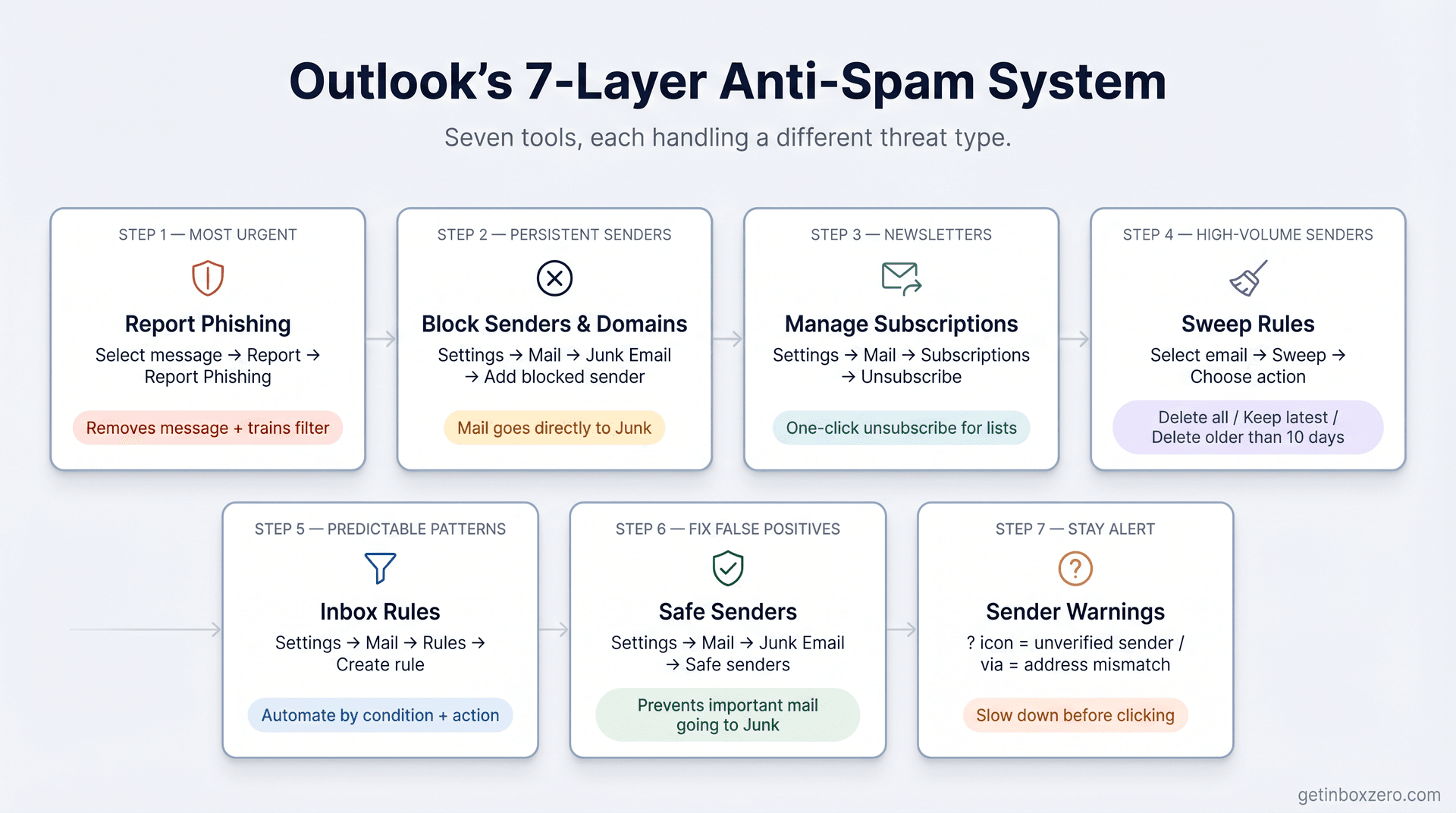
1. Report Phishing in Outlook
-
Select the suspicious message.
-
Choose Report.
-
Select Report phishing.
Microsoft says this is the fastest way to remove the message and improve Microsoft's filters. Important caveat: reporting phishing does not block the sender. If you want to block them too, you need to add them to your Blocked senders list separately.
2. Block Senders or Domains in Outlook
In Outlook on the web or new Outlook:
-
Open Settings.
-
Go to Mail > Junk email.
-
Under Blocked senders and domains, select Add blocked sender.
-
Enter the email address or domain.
-
Save.
Microsoft says blocked addresses and domains move directly to Junk Email, and that Junk Email is retained for 30 days before automatic deletion.
Be careful when blocking entire domains, since that blocks everyone from that domain, including legitimate support or billing emails you might need.
3. Manage Subscriptions in Outlook.com
For newsletters and legitimate marketing you no longer want, unsubscribing in Outlook is quicker than it looks once you know where to find the subscription manager:
-
Open Settings.
-
Go to Mail > Subscriptions.
-
Find a sender.
-
Select Unsubscribe.
Outlook.com examines incoming emails for subscription identifiers in the message header and provides a way to manage subscriptions and block senders in one place.
4. Use Sweep for Repeat Senders
Sweep is useful when a sender isn't malicious but sends too much.
In Outlook on the web:
-
Select an email from the sender.
-
Choose Sweep.
-
Choose an action: delete all incoming mail from this sender, keep only the latest email, or delete email older than 10 days.
-
Confirm.
Microsoft notes that Sweep rules run once per day, while inbox rules run as soon as email arrives. Keep that in mind if timing matters.
5. Create Outlook Inbox Rules
For predictable patterns you want moved, archived, flagged, or deleted automatically:
| Goal | Rule condition | Action |
|---|---|---|
| Keep newsletters out of inbox | Sender is newsletter domain | Move to Newsletters folder |
| Keep receipts searchable | Subject includes receipt, invoice, order | Move to Receipts folder |
| Reduce cold outreach noise | Subject contains "quick question" or "following up" from unknown senders | Move to Cold Email Review |
| Protect VIP messages | Sender is client, boss, bank, or legal contact | Flag or keep in inbox |
| Remove repeated junk | Sender/domain repeatedly sends unwanted mail | Move to Junk or delete |
Don't create broad delete rules for words like "invoice," "payment," "account," or "security." Spammers use those words, but so do your bank and your clients. If Outlook rules aren't firing when you expect them to, there are a few common causes worth checking before rebuilding them.
6. Use Safe Senders for False Positives
If important mail keeps ending up in Junk, add the sender to Safe senders and domains. Microsoft says messages from safe senders won't be moved to Junk Email.
Add specific addresses rather than entire domains when possible (billing@company.com is safer than company.com).
7. Watch Outlook's Sender Warnings
Outlook may show a ? in the sender image when it can't verify the sender, and may show an underlined via tag when the actual sending address differs from the visible From address. A warning doesn't always mean malicious, but it should slow you down before clicking anything.
How to Stop Spam in Apple Mail and iCloud
Apple's philosophy is different from Gmail or Outlook's. Where those providers focus on reactive tools (block, report, filter), Apple leans into prevention: stop confirming your address is active, mask your real address before it gets out, and load images only when you choose to.
Apple's guidance on reducing iCloud Mail spam keeps it simple: stop opening suspected junk, turn on Protect Mail Activity, and use aliases to limit how much your real address gets out.
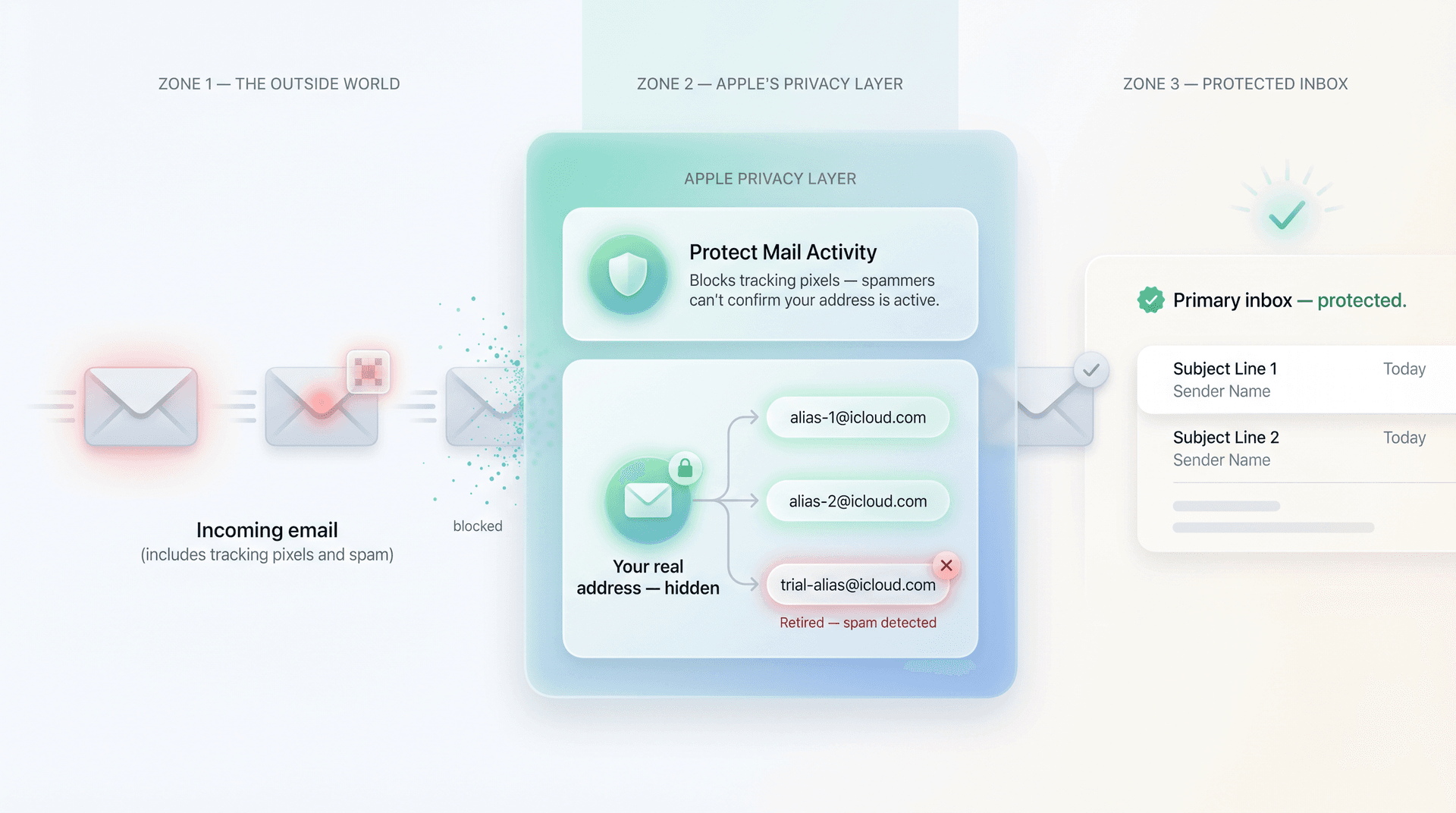
① Don't open suspected junk mail. Apple says opening junk mail can alert spammers that an active account opened the message, which invites more.
② Turn on Protect Mail Activity. Spammers use image loading (specifically the tracking pixels embedded in emails) to confirm addresses are active. Protect Mail Activity on iPhone, iPad, Mac, and iCloud.com blocks this.
③ Use iCloud email aliases or Hide My Email. Apple says iCloud aliases help prevent junk from reaching your primary address. With iCloud+, Hide My Email creates random unique addresses that forward to your inbox. These are ideal for apps, free trials, and sites you don't fully trust.
④ Retire aliases that start receiving spam. The advantage of aliases is isolation: if shopping-alias@example.com gets spammed, you know where the exposure came from and can kill that address.
Apple's approach is more prevention-focused than Gmail or Outlook's reactive tooling. The combination of Protect Mail Activity and Hide My Email is genuinely effective for reducing future exposure.
How to Stop Spam in Yahoo Mail
Yahoo's spam filters catch most junk, but some gets through. Yahoo says marking an email as spam helps its system learn that messages from that sender aren't good, improving future recognition.
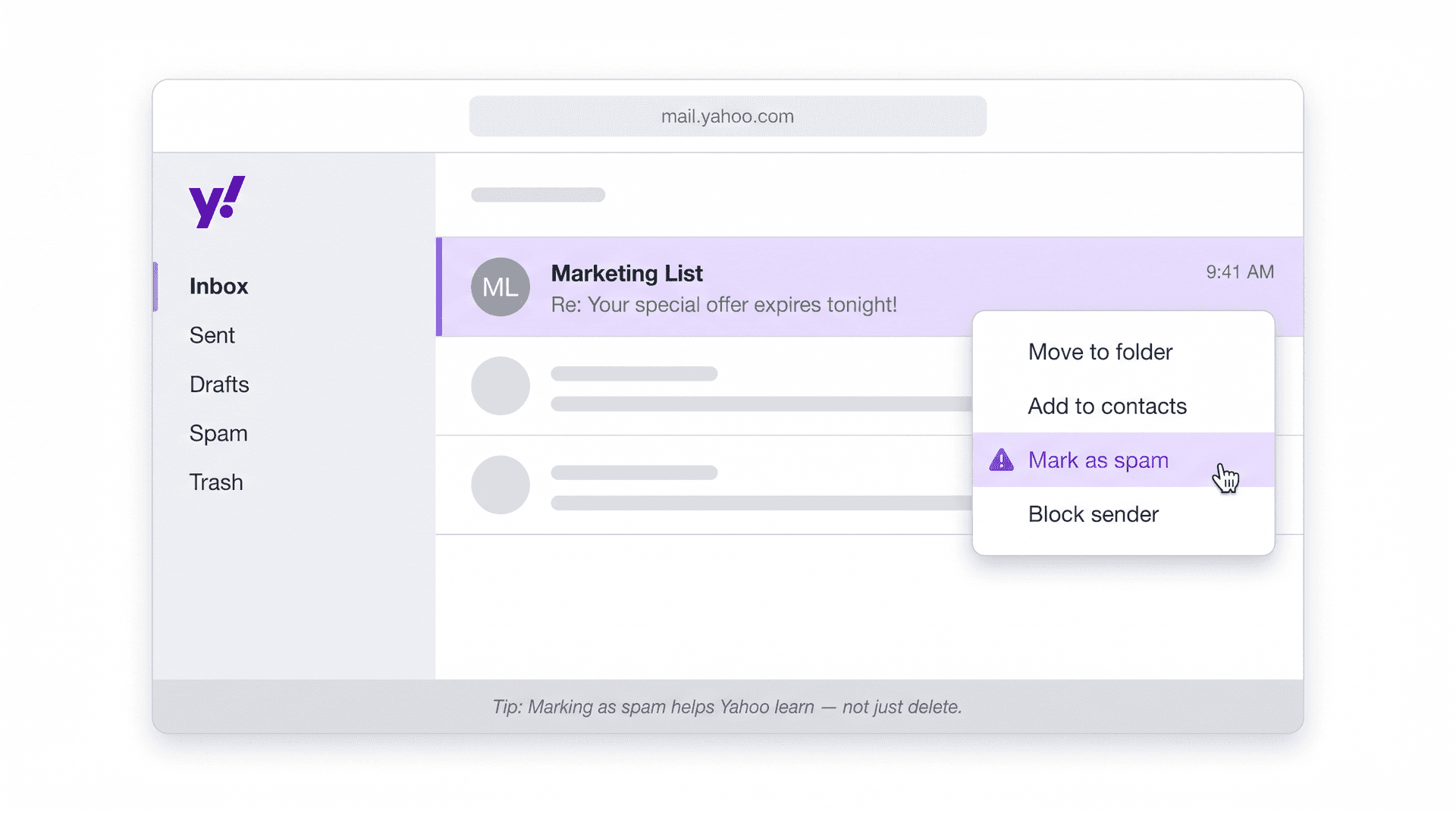
-
Open or select the unwanted email.
-
Tap or click More.
-
Choose Mark as spam.
-
Block repeat senders when appropriate.
-
Create filters for recurring low-value patterns.
Yahoo's main advice mirrors Gmail and Outlook: don't just delete spam. Mark it as spam so the filter learns. Yahoo also lets users manage a blocked-address list (up to 1,000 addresses in the older desktop interface, with newer versions working similarly).
How to Stop Spam in Proton Mail
Proton Mail gives you spam, block, and allow lists, plus hide-my-email aliases for prevention.
In Proton Mail:
-
Go to Settings.
-
Open Proton Mail > Filters.
-
Choose Spam, block, and allow lists.
-
Add an address or domain to Spam, Block, or Allow.
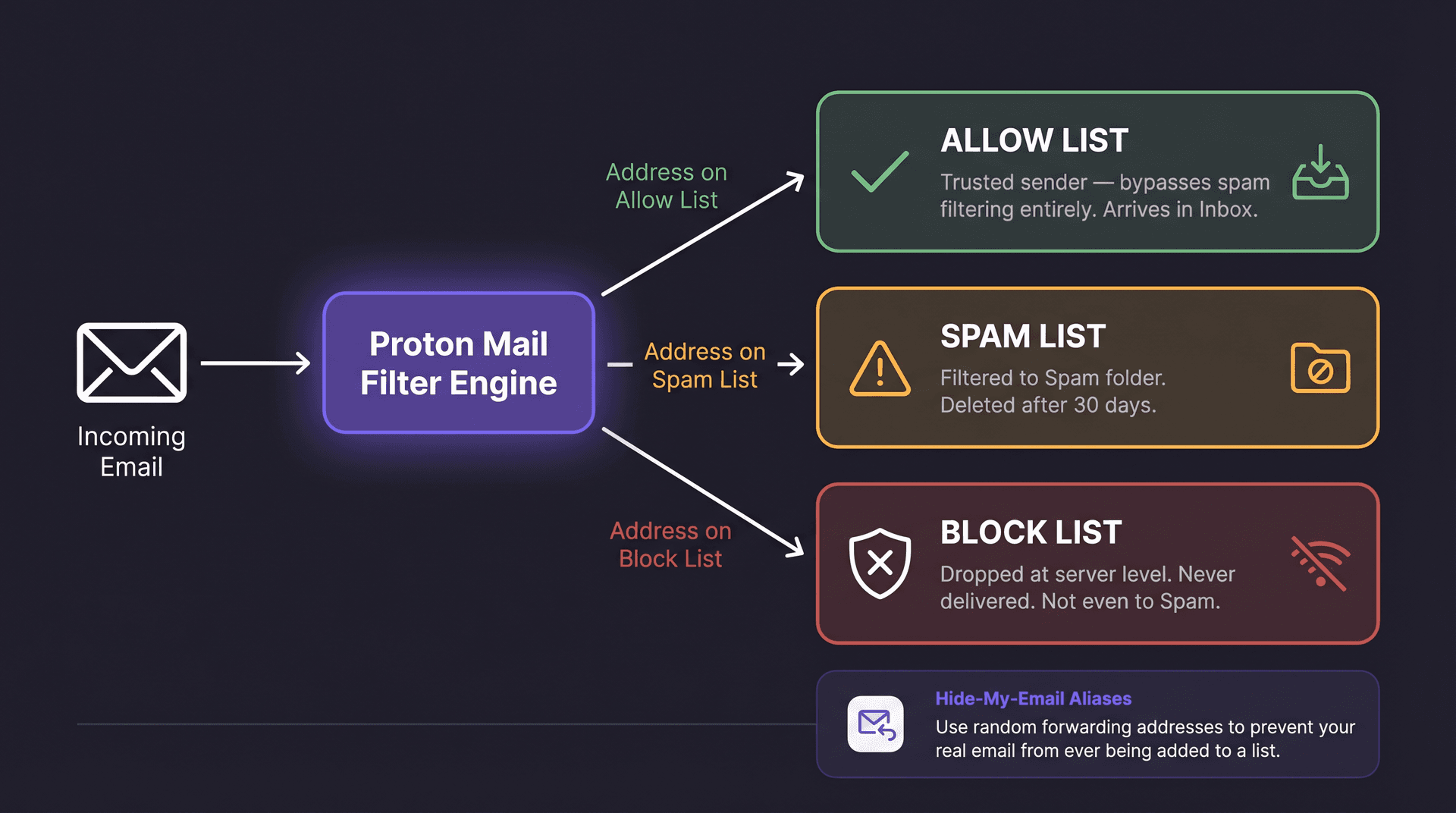
Proton explains the difference: the spam list filters addresses to your Spam folder; the block list drops messages so they're never delivered at all; the allow list lets trusted senders bypass spam filtering entirely.
For prevention, Proton's hide-my-email aliases work like Apple's version: random unique addresses that forward to your real inbox. You can deactivate them if they show up in a breach or start receiving spam.
How to Stop Spam Before It Starts: Protect Your Real Email Address
Cleaning today's spam is only half the job. If you keep handing out your primary address to every site that asks for it, the volume will just creep back up. The long-term fix is reducing how often your real address gets exposed.
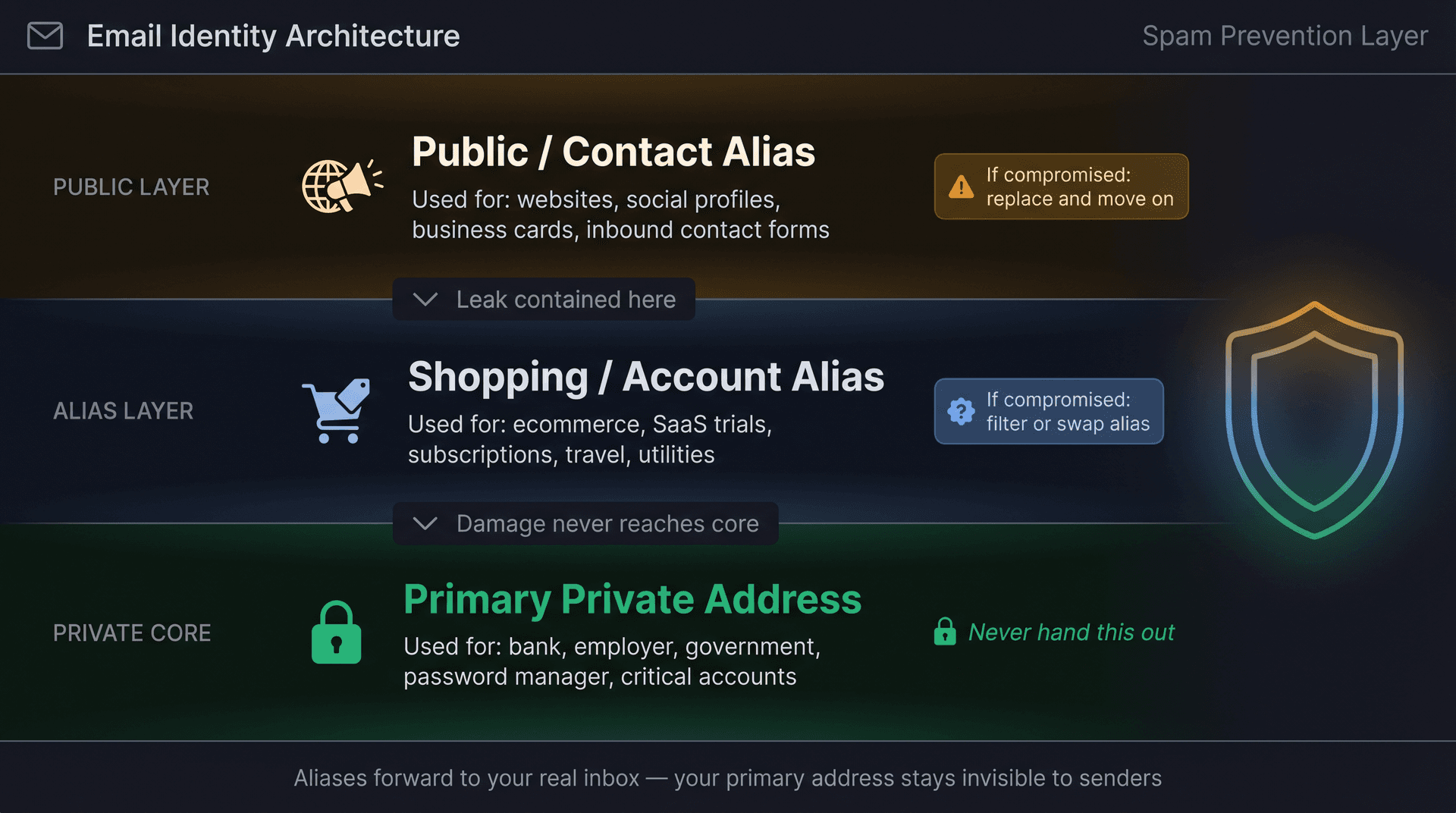
How to Build a Three-Address Email System
At minimum, run three levels of email identity:
| Address type | Use it for | Never use it for |
|---|---|---|
| Primary private address | Bank, employer, government, password manager, critical accounts | Newsletters, contests, random apps, trials |
| Shopping/account alias | Ecommerce, SaaS trials, travel, utilities, subscriptions | Banking or password recovery |
| Public/contact alias | Websites, social profiles, business cards, inbound requests | Personal accounts or login recovery |
If the public alias gets spammed, replace it. If the shopping alias gets sold, filter it. Your primary address stays clean.
How to Use Gmail Plus Addressing to Track Signups
Gmail has supported plus addressing for years. If your address is name@gmail.com, you can use name+shopping@gmail.com or name+newsletters@gmail.com. Google's official Gmail blog explained this feature and it remains a common workflow for tracking which site shared your address.
Exchange Online also supports plus addressing. Microsoft says it lets users create unique receive-only addresses that extend their actual address, useful for managing email and site registrations.
One caveat: plus addresses still reveal your root address, and some senders (or spammers who know the trick) can strip the +tag. For situations where you want to mass-unsubscribe without risking your privacy, true aliases are the safer approach.
How Email Aliases Stop Spam Better Than Plus Addressing
Aliases are stronger than plus addresses because they can hide your real address entirely.
Outlook.com aliases use the same inbox as your primary address. Microsoft says alternate addresses can help keep your personal email out of the hands of marketers and hackers.
Google Workspace admins can add up to 30 aliases per user at no extra cost, with messages routing to the primary inbox. If you run into problems with aliases, our Gmail alias troubleshooting guide covers the most common setup issues.
Apple's Hide My Email and Proton's hide-my-email aliases go further by generating random addresses that forward to your inbox. These are ideal for apps, free trials, lead magnets, and any site where you'd be annoyed if the address leaked.
How to Check If Your Email Address Was Exposed in a Breach
Have I Been Pwned lets you check whether your email address appears in known data breaches. At the time of writing, the site listed 975 pwned websites and over 17.5 billion pwned accounts.
If your email appears in a breach:
-
Change the password for the breached service immediately.
-
Change any reused passwords elsewhere.
-
Turn on two-factor authentication.
-
Watch for phishing that references the breached company.
-
Use aliases for new accounts going forward.
For a broader view of how third-party tools connect to Gmail safely when you're considering which cleanup apps to trust with your inbox, that guide covers what to look for in OAuth scope reviews and what red flags to avoid.
How to Remove Your Email from Google Search Results
Google's Results About You can help you find whether personal information like your email address appears in Google Search results. Google lets eligible users request removal of certain results, though removing a result from Google Search doesn't remove it from the source website.
How Inbox Zero Helps You Stop Spam and Clean Your Inbox
Built-in Gmail and Outlook tools are your first line of defense. Inbox Zero adds a second layer: AI-powered cleanup, rules, labels, bulk unsubscribe, cold-email blocking, and Gmail tabs that work alongside your existing inbox rather than replacing it.
Inbox Zero supports Gmail, Google Workspace, and Microsoft Outlook, connecting via OAuth and working through your existing labels, folders, and filters.
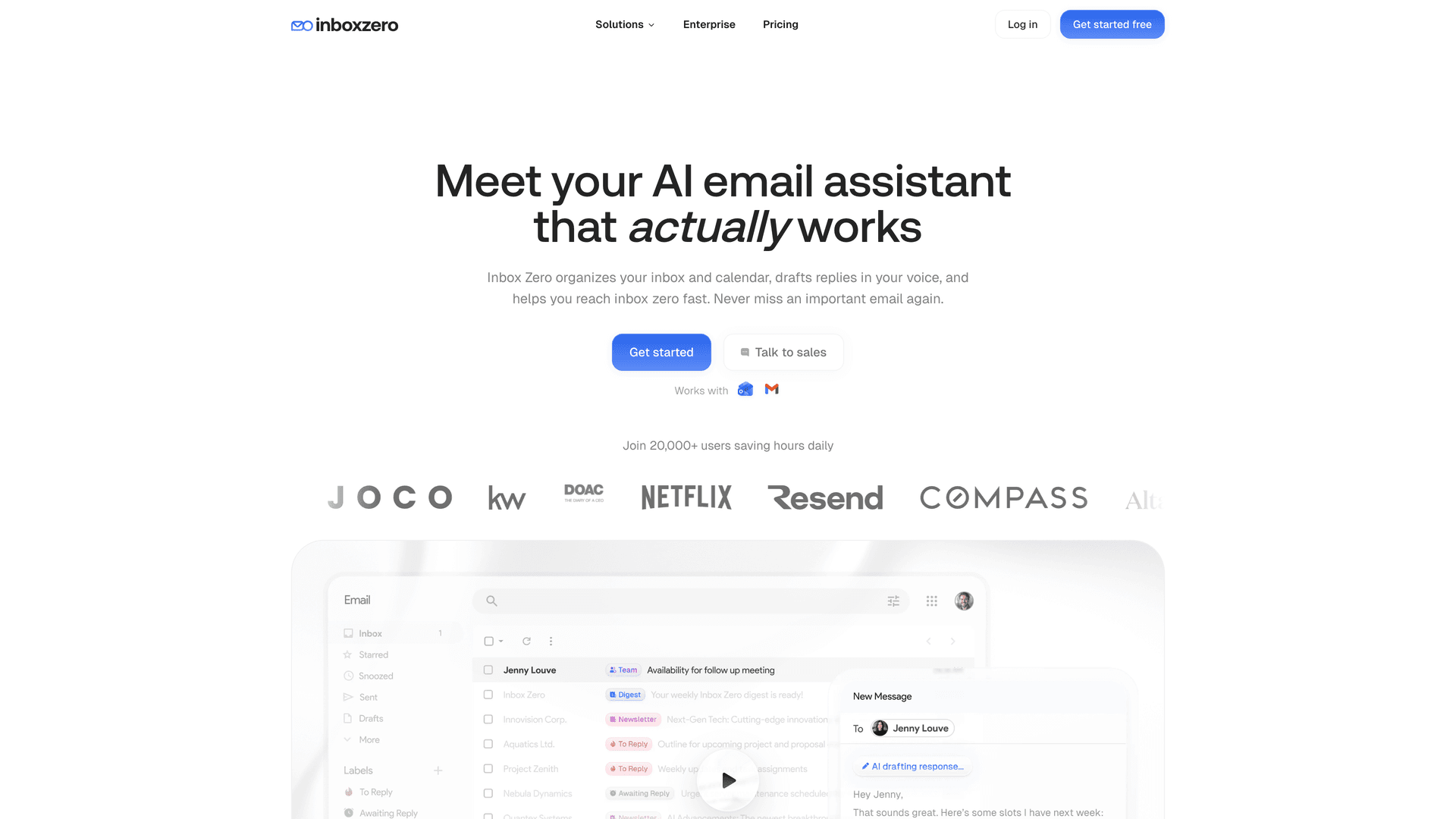
How to Bulk Unsubscribe from Emails Automatically
Our Bulk Email Unsubscriber shows newsletters and marketing senders in one place. You can see sender details like frequency and old emails, then choose to unsubscribe, auto-archive, auto-archive plus label, or keep a sender. The bulk email unsubscriber lets you sort by number of emails received, most unread, or unarchived.
This is the right tool for the "spam" that isn't malicious but still clogs your inbox: newsletters you stopped reading, promotional lists, webinar follow-ups, ecommerce offers. The kind of thing that takes 45 minutes to manually unsubscribe from but maybe 5 minutes in the Unsubscriber.
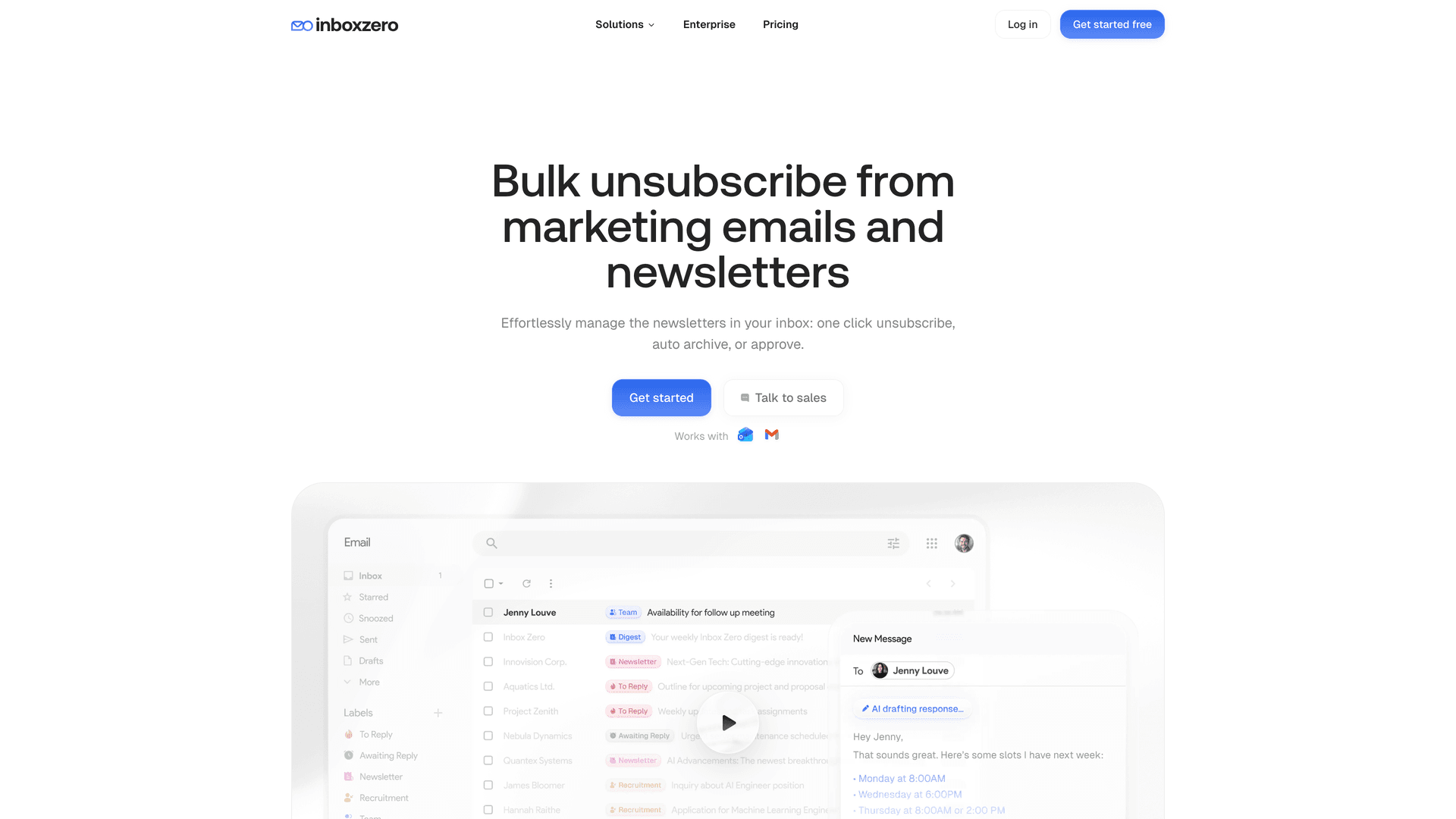
How to Block Cold Emails with AI
Our Cold Email Blocker handles the other major inbox pollutant: unsolicited sales outreach. The cold email blocker runs in three modes:
→ List only: shows cold emails in a table without moving them.
→ Auto label: automatically labels cold emails as Cold Email.
→ Auto archive and label: archives cold emails and labels them.
The feature uses a customizable prompt, excludes senders who've emailed you before (so it won't accidentally catch existing relationships), and includes a test panel where you can paste an email to see how it would be classified.
A safe rollout if you're new to it:
-
Week 1: run in list-only mode.
-
Week 2: switch to auto-label.
-
Week 3: auto-archive only if the classifications look reliable.
Don't start with auto-archive. Some cold emails are low-value sales pitches; others can be partnerships, investor messages, press, or recruiting.
How to Create AI Email Rules for Inbox Clutter
Our AI Personal Assistant lets you create AI automation rules that use either AI conditions or static From/To/Subject conditions, with actions like label, archive, draft reply, mark read, mark spam, forward, call a webhook, or delay. Inbox Zero includes test and fix flows for tuning rules once they're running.
Four rule examples that work well for spam reduction:
Newsletter rule: If this is a newsletter, digest, blog update, marketing email, webinar follow-up, or product announcement that doesn't require a personal response, label it Newsletter and archive it. Don't apply this to receipts, security alerts, invoices, or direct customer messages.
Cold outreach rule: If this is unsolicited cold sales outreach from someone I haven't previously corresponded with, label it Cold Email. Don't label messages from customers, investors, partners, recruiters, journalists, or people asking about an existing relationship.
Receipt rule: If this is a receipt, invoice, order confirmation, payment confirmation, shipping update, or renewal notice, label it Receipts. Keep it out of my inbox unless it contains failed payment, overdue, refund, chargeback, cancellation, security, or action required.
Suspicious review rule: If the message asks me to log in, verify payment, open an unexpected attachment, provide a password, or urgently transfer money, label it Security Review. Don't auto-delete it. Don't reply.
The last rule is the most important: don't build automation that deletes potential security alerts.
How to Add Custom Tabs to Gmail (Inbox Zero Extension)
Inbox Zero Tabs for Gmail is a Chrome extension that adds custom tabs to Gmail based on labels or search queries. Think Superhuman-style split inbox inside Gmail, with 100% private, local storage only, no data collection.
Useful tab setups once your labels are running:
| Tab name | Gmail query |
|---|---|
| To Reply | in:inbox label:to-reply |
| Newsletters | in:inbox label:newsletter |
| Receipts | in:inbox label:receipts |
| Cold Email | in:inbox label:cold-email |
| Important Unread | in:inbox is:unread -category:promotions |
| Large Attachments | in:inbox larger:10M |
Tabs don't replace spam filtering. They make a filtered inbox navigable: you can see what's in each bucket without everything landing in one undifferentiated pile.
Ready to set this up? Inbox Zero works alongside Gmail and Outlook, and takes about 10 minutes to connect.
How Businesses Can Stop Spam, Phishing, and Domain Spoofing
If you run a business, stopping spam has an additional dimension: you also need to prevent attackers from impersonating your domain, and ensure your own email doesn't look like spam to recipients.
How to Set Up SPF, DKIM, and DMARC
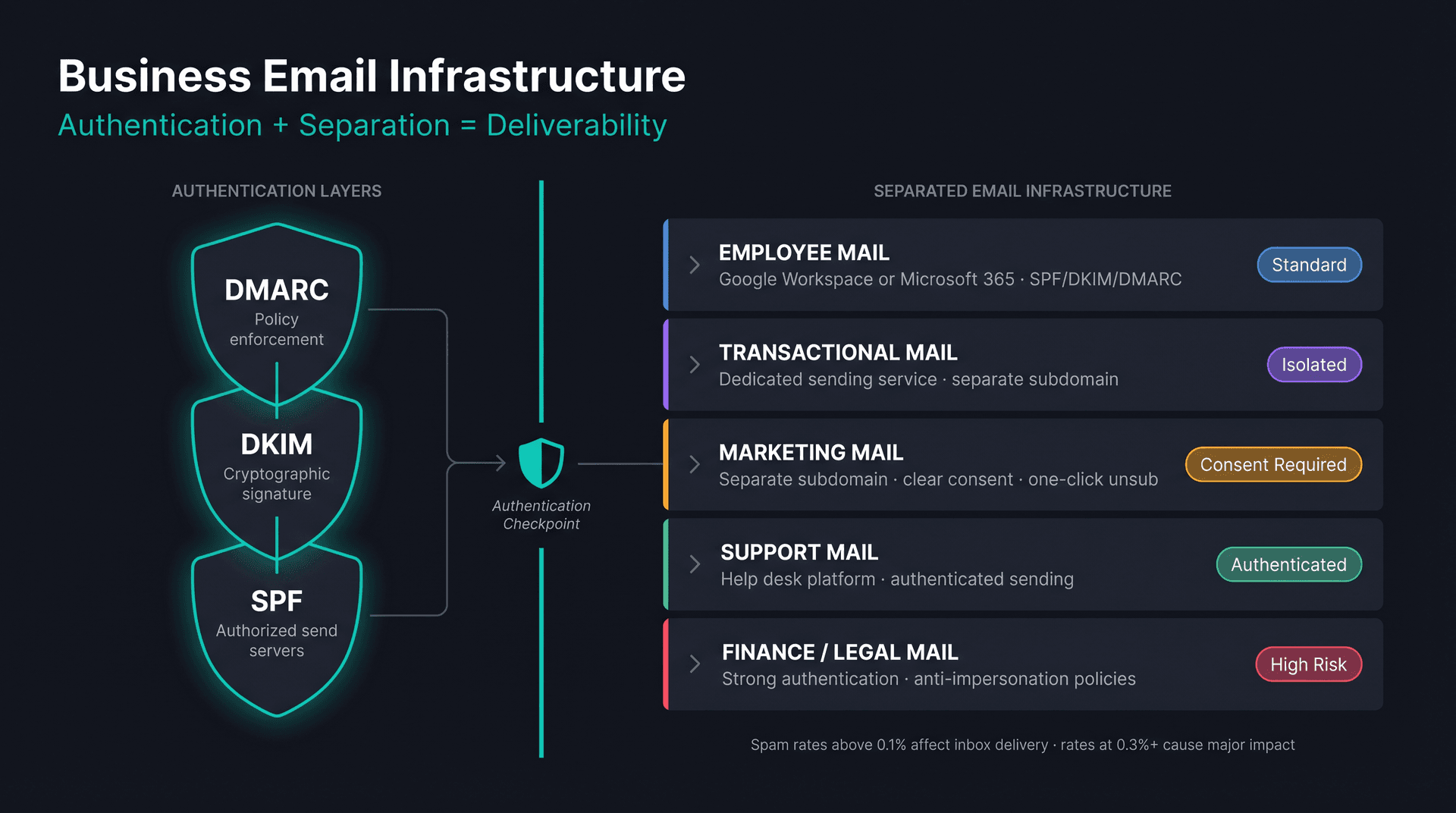
These three authentication records tell receiving mail servers whether a message claiming to come from your domain is legitimate.
-
SPF specifies which servers are allowed to send from your domain.
-
DKIM adds a cryptographic signature.
-
DMARC tells receivers what to do when mail fails SPF or DKIM checks.
Google's sender guidelines require all senders to Gmail accounts to set up SPF or DKIM, use valid forward and reverse DNS, use TLS, and keep spam rates below 0.3%. For senders who send more than 5,000 messages per day to Gmail accounts, Google requires both SPF and DKIM, plus DMARC, valid DNS, TLS, From-domain alignment, and one-click unsubscribe for marketing messages.
Authenticated messages are less likely to be rejected or marked as spam by Gmail. Understanding why legitimate emails land in spam is the flip side of what we've covered so far: if you're sending email for your organization, the same authentication signals that protect recipients also protect your own deliverability.
How to Keep Your Email Complaint Rate Below 0.1%
Google's bulk sender FAQ says senders should keep spam rates below 0.1% and prevent rates from reaching 0.3% or higher. Rates above 0.1% negatively affect inbox delivery; rates at 0.3% or above have a substantially greater negative impact.
Yahoo's sender best practices similarly require keeping complaint rates below 0.3%, with SPF, DKIM, DMARC, one-click unsubscribe, visible unsubscribe links, and honoring unsubscribes within 2 days. For a complete playbook, our email deliverability guide covers sending reputation management end to end.
The practical implication: deliverability is a reputation system. If people don't want your email, stop sending it.
How to Add One-Click Unsubscribe to Your Emails
For Gmail bulk senders, one-click unsubscribe is required for marketing and promotional messages (transactional messages like password resets are excluded). Google requires RFC 8058 List-Unsubscribe headers. A body link alone doesn't qualify. Google recommends fulfilling unsubscribe requests within 48 hours.
In the U.S., the FTC's CAN-SPAM compliance guide says opt-out requests must be honored within 10 business days, and you can't require more than an email reply or a single web page to opt out.
How to Configure Microsoft Defender Anti-Phishing Protections
For Microsoft 365 organizations, Microsoft says the default anti-phishing policy in Defender for Office 365 provides spoof protection and mailbox intelligence for all recipients, but that impersonation protection and phishing threshold settings aren't configured in the default policy. Microsoft recommends Standard or Strict configurations.
For high-risk roles (executives, finance, HR, legal, IT admins), configure impersonation protection and stronger authentication. Pairing this with phishing prevention strategies for your organization reduces both inbound risk and the likelihood of staff falling for targeted attacks.
How to Separate Your Email Infrastructure to Protect Deliverability
Different types of email need different infrastructure:
| Mail type | Recommended practice |
|---|---|
| Employee mail | Google Workspace or Microsoft 365 with SPF/DKIM/DMARC |
| Transactional mail | Dedicated sending service and subdomain |
| Marketing mail | Separate subdomain, clear consent, one-click unsubscribe |
| Support mail | Help desk platform with authenticated sending |
| Finance/legal mail | Strong authentication, anti-impersonation policies |
If marketing gets spam complaints, you don't want it damaging password resets, invoices, or employee communications. For Google Workspace email security settings including authentication, routing, and admin controls, that guide covers the full setup process.
Advanced Spam Blocking Tactics That Actually Work
Why "Label, Then Archive" Beats Auto-Delete for Spam
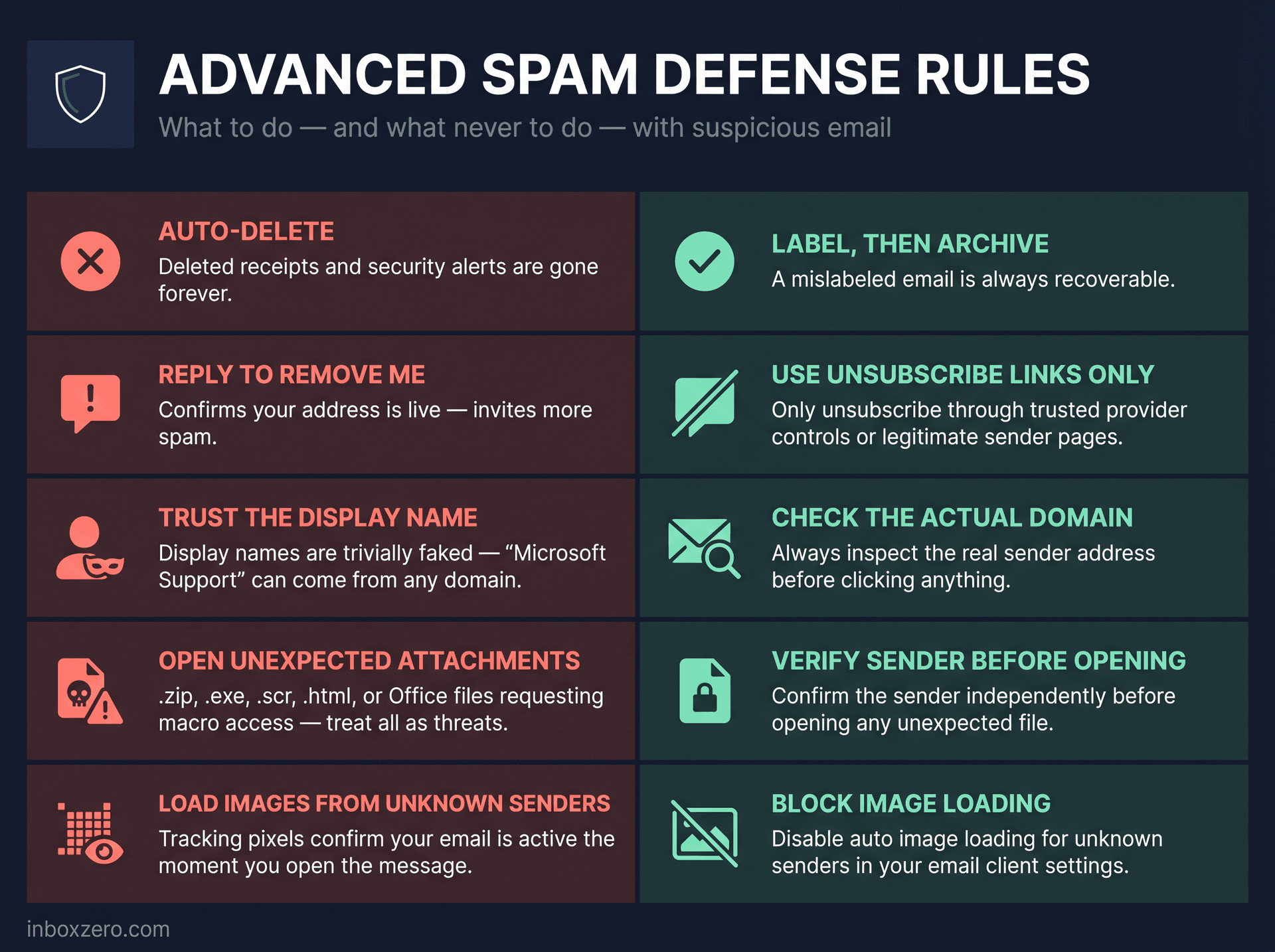
For the first month of any cleanup system, follow this sequence: label first, archive second, delete much later (only when you trust the rule completely). A mislabeled email is recoverable. A deleted receipt or security alert isn't.
This is especially important for receipts, invoices, renewals, security alerts, and client emails.
How to Create a Spam Review Folder for Borderline Emails
Some messages aren't dangerous enough to report as phishing but aren't important enough for your inbox either. A review folder works well for:
-
Cold pitches and partnership requests
-
Guest post requests or PR outreach
-
Vendor pitches and recruiter messages
-
Unknown but possibly legitimate senders
Review once or twice a week. If a sender keeps showing up with nothing useful, block or unsubscribe.
Why You Should Never Auto-Reply to Spam Emails
Don't send "remove me" replies to suspicious senders. That confirms your address is active and can invite more spam. Only unsubscribe through trusted provider controls or legitimate sender unsubscribe pages.
Why Sender Display Names Can't Be Trusted
Sender display names are easy to fake. A message can say "Microsoft Support" or "Bank Security Team" while coming from a completely unrelated domain. Outlook warns users about spoofed source addresses and shows unverified sender indicators when authentication fails. Always check the actual sender domain before clicking anything.
How to Spot Dangerous Email Attachments
Treat unexpected attachments as suspicious, especially:
-
.html,.zip,.rar,.exe,.scrfiles -
Office files asking you to enable macros
-
Password-protected attachments from unknown senders
-
Anything labeled "Invoice," "payment," or "document" from a sender you don't recognize
Microsoft's phishing guidance says suspicious links and unexpected attachments are a red flag.
How to Turn Off Email Image Loading to Block Tracking Pixels
Spammers use tracking pixels embedded in images to learn whether you opened an email. Apple specifically warns that opening junk mail can alert spammers that an active account opened the message. Most email clients offer image-blocking settings. Use them for unknown senders.
Spam Troubleshooting: Common Problems and How to Fix Them
"I blocked the sender, but spam still arrives"
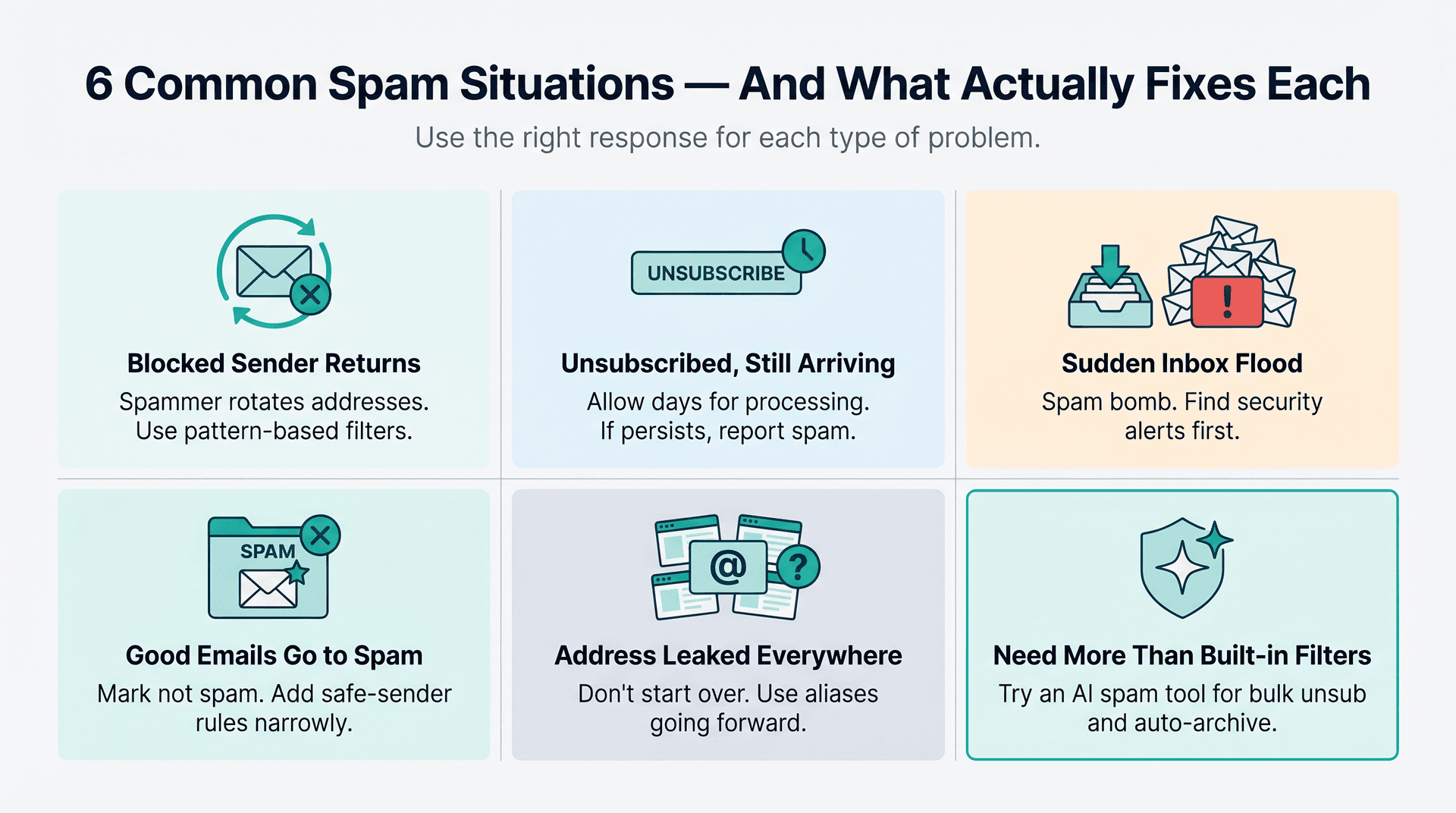
The spammer is probably using a different address each time. Blocking works for persistent single senders but not for botnets or services that rotate addresses. In those cases, reporting spam/phishing helps train provider-level filters, and creating pattern-based filters (catching repeated subject phrases or sending domains) works better than individual address blocks. If you want a more automated approach to pattern-based blocking for rotating spam addresses, AI-based classification handles these better than static rules.
"I unsubscribed, but emails still arrive"
Several things can explain this:
-
It can take a few days for legitimate senders to process unsubscribes. Gmail notes it may take a few days for the sender to remove you.
-
You unsubscribed from one list but the company has multiple lists.
-
The sender is ignoring unsubscribe requests (which is illegal in many jurisdictions).
-
The email isn't a real subscription. It's spam pretending to have an unsubscribe link.
If a legitimate sender keeps emailing after a reasonable wait, report spam and block.
"I'm suddenly getting hundreds of random subscription emails"
This is almost certainly a spam bomb. The goal is to flood your inbox so you miss something important: a bank alert, password reset, or account change notice. Search your inbox and spam folder for security alerts, password resets, and payment notifications before you start cleaning up the flood. Gmail specifically warns about this tactic and recommends running a Google Security Checkup.
"Important emails keep going to spam"
Mark them as not spam (or "Report not spam" in Gmail). Add narrow safe-sender rules for that specific address. Avoid broad allowlists, since adding an entire domain is riskier than allowing a single address. In Gmail, removing a message from Spam helps future messages from that sender. In Outlook, safe senders aren't moved to Junk Email.
"My email address is already everywhere. Should I start over?"
Usually not. Start with the layered cleanup system first. Use your current address for important accounts but stop handing it out. Create aliases for new signups. If spam remains unmanageable after several weeks of active cleaning, you can consider creating a new primary address and manually migrating critical accounts.
"Should I use a third-party spam blocker?"
Built-in Gmail and Outlook protections should be your first layer. A third-party tool makes sense when you need:
-
Bulk unsubscribe across many senders at once
-
Auto-archive for newsletters you never read
-
AI classification for cold outreach
-
A review queue instead of all-or-nothing blocking
-
Rules and labels that match your specific workflow
-
Analytics showing who's actually clogging your inbox
For a side-by-side look at the best dedicated unsubscribe apps, that guide evaluates the major options by capability and approach.
That's where Inbox Zero fits: it works alongside Gmail and Outlook, handles bulk unsubscribe and auto-archive, blocks cold emails, labels and organizes messages, and supports rules you can test and tune before enabling automation.
The 30-Minute Spam Cleanup Plan
If your inbox is already a mess, start here. This plan won't get everything, but it will make a real dent in 30 minutes.
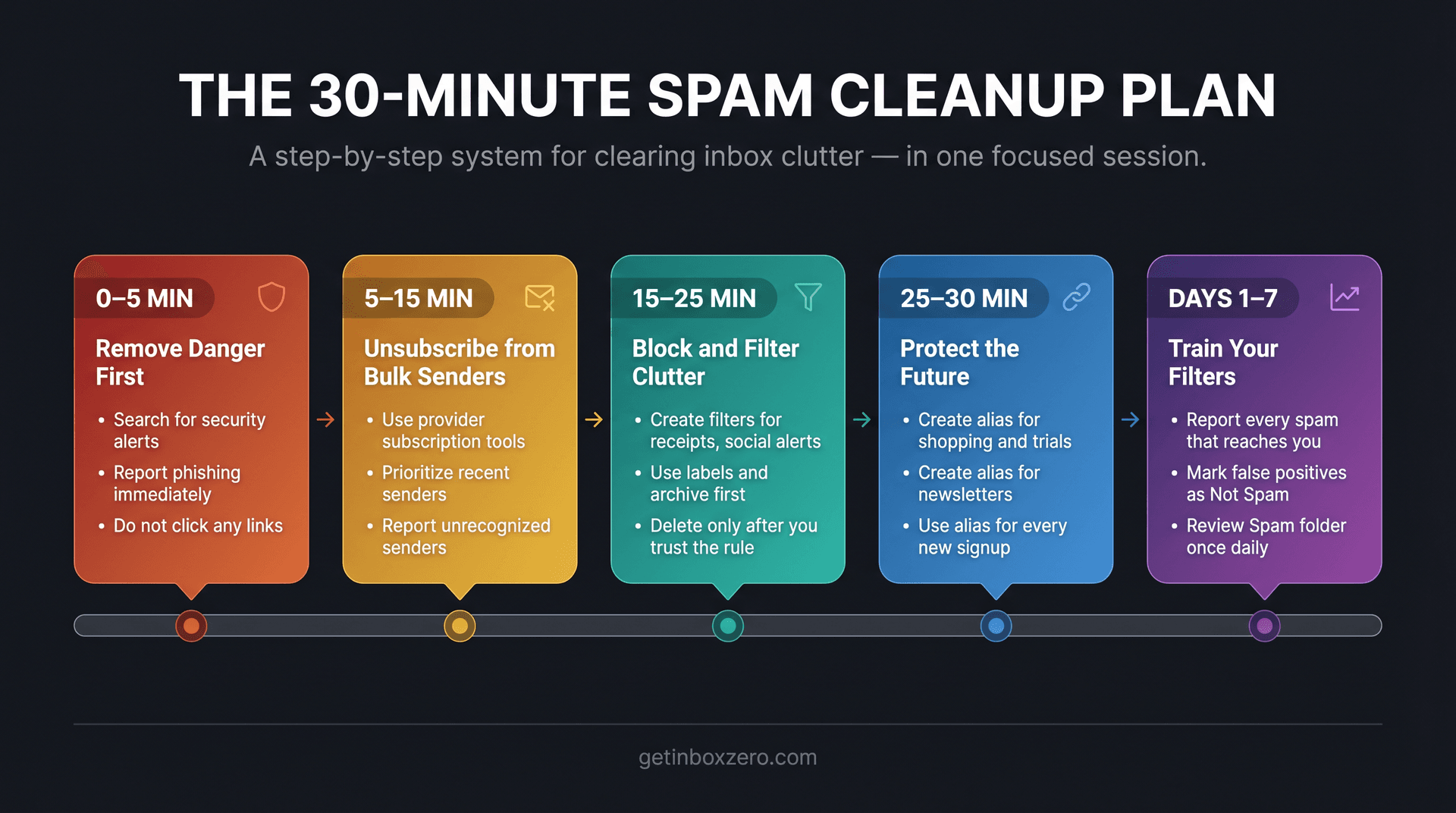
Minutes 0–5: Remove Danger First
Before you touch anything else, search for recent suspicious messages involving:
-
Password reset, security alert, new login
-
Payment, bank, invoice, order confirmation
-
Delivery, account locked, verify, recovery
Report phishing or spam. Don't click any links. If you see a security alert, open the service directly in a new browser tab. Don't use any link in the email.
Minutes 5–15: Unsubscribe from Legitimate Bulk Senders
Use your provider's built-in subscription tools:
-
Gmail: More > Manage subscriptions
-
Outlook.com: Settings > Mail > Subscriptions
-
Apple Mail: use Mail's built-in unsubscribe controls where available
-
Yahoo: unsubscribe from legitimate senders, mark junk as spam
-
Proton: use filters, spam/block lists, and aliases
Start with senders that emailed you most recently or most frequently. If you don't recognize a sender, report spam instead of clicking their unsubscribe link. For a faster bulk unsubscribe that handles multiple senders at once instead of going through them individually, that guide walks through the options in detail.
Minutes 15–25: Block and Filter Repeat Offenders
Create filters for predictable clutter:
-
Newsletters you want to keep but not see in your inbox
-
Receipts and order confirmations
-
Social notifications and app alerts
-
Shipping updates
-
Recurring cold sales emails
Use labels and archive first. Delete later only when you trust the rule.
Minutes 25–30: Protect the Future
Create at least two aliases:
-
One for shopping and trials.
-
One for newsletters and content downloads.
For every new signup from here on, use an alias. If a site abuses it, filter or kill that alias.
The Next 7 Days: How to Train Your Spam Filters
For one week after the initial cleanup:
-
Report every spam message that still reaches your inbox.
-
Mark false positives as not spam.
-
Unsubscribe from any legitimate newsletters you haven't dealt with.
-
Add filters only after you see a repeating pattern (don't over-filter early).
-
Review Spam/Junk once a day for false positives.
-
Avoid aggressive auto-delete rules until you trust what you've set up.
This is how you turn a one-time cleanup into a system that gets more effective over time. A recurring cleanup checklist helps keep that momentum going after the initial push.
Frequently Asked Questions About Stopping Spam Emails
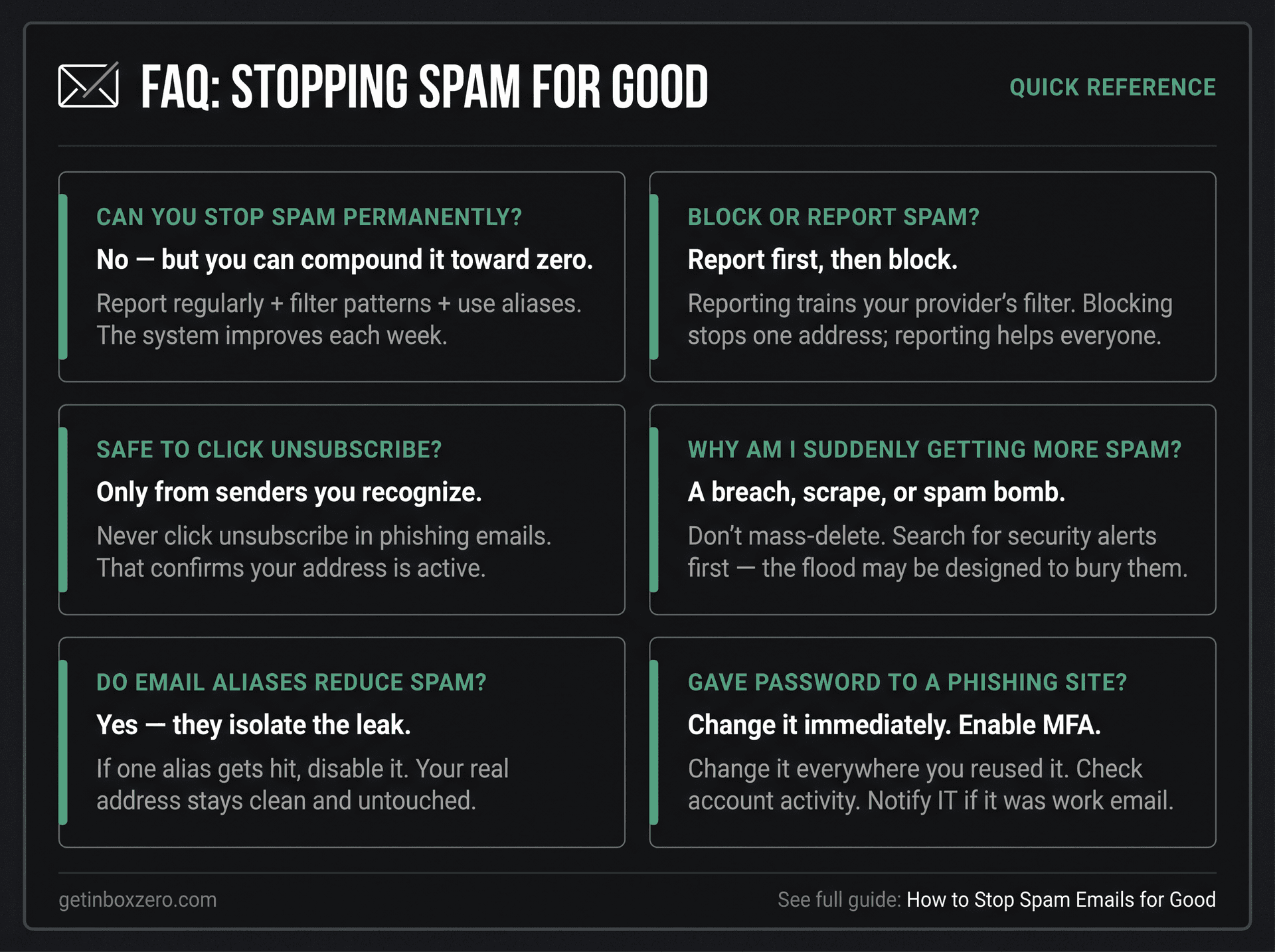
Can you stop spam emails permanently?
Not literally. No provider can guarantee zero spam forever because your address can be leaked, guessed, scraped, sold, or exposed in a breach. But you can get spam close to zero and keep it there. Report junk regularly, unsubscribe from legitimate senders, block repeat offenders, filter predictable patterns, and use aliases for future signups. The system compounds: each action makes the next week slightly better. That's the core principle behind the Inbox Zero method: not a one-time fix, but a compounding system.
Is it better to block or report spam?
Report first when the message is spam or phishing. Blocking is useful for persistent senders who keep emailing from the same address, but reporting helps train provider filters, which benefits you and everyone else. In Gmail, reporting spam sends a copy to Google for analysis. In Outlook, reporting phishing helps remove the message and improve Microsoft's filters.
Is it safe to unsubscribe from spam emails?
It's safe to unsubscribe from legitimate senders you recognize, especially through Gmail, Outlook, or another trusted mail app's built-in unsubscribe control. It's not safe to click unsubscribe links in suspicious phishing emails or obvious spam from senders you don't recognize. The FTC recommends not clicking links or downloading attachments in unexpected messages.
Why am I suddenly getting so much spam?
Common causes include a data breach, a scraped public email address, a company selling or sharing your address, spammer list testing, or an email bombing attack. Gmail warns that blank messages can be used to test whether an address is valid, and that spam attacks can bury important security alerts.
What's the best way to stop newsletter spam?
Use your provider's subscription manager first. Gmail has Manage Subscriptions (More > Manage subscriptions) and Outlook.com has Settings > Mail > Subscriptions. Then learn how to manage all your email subscriptions systematically. Auto-archive or label newsletters you want to keep but not actively manage. For bulk cleanup across many senders at once, Inbox Zero's Bulk Email Unsubscriber can handle it significantly faster than going sender by sender.
How do I stop spam without missing important emails?
Don't start with auto-delete. Start with labels, folders, and archive rules. Review the folder for a week. Once you trust the rule, make it more aggressive. Keep security, financial, legal, and client-related emails explicitly out of any auto-delete rules.
Do email aliases really reduce spam?
Yes, because they limit exposure of your real address and let you isolate leaks. If one alias starts getting spam, you can filter, disable, or replace it without touching your primary address. Apple, Outlook.com, Google Workspace, Exchange Online, and Proton all support alias or plus-address workflows. The practical starting point is how to escape the cycle of persistent senders for good. Aliases are one of the most effective tools in that toolkit.
Should I use Gmail plus addressing?
Yes, for organization and low-risk tracking. Use yourname+shopping@gmail.com or yourname+newsletters@gmail.com to track which site shared your address. Gmail's blog originally explained this feature and it's still a useful habit. Just remember that plus addresses still reveal your root address. Use true aliases or masked email for higher-risk signups.
What should I do with phishing emails?
Don't click links, don't open attachments, and don't reply. Report the message as phishing in Gmail or Outlook. The FTC also recommends forwarding phishing emails to the Anti-Phishing Working Group at reportphishing@apwg.org and reporting them to the FTC. For a broader framework, our full phishing prevention guide covers both individual and organizational responses.
What should I do if I gave my password to a phishing site?
Change the password immediately on the real website. Change it anywhere else you reused it. Turn on MFA or passkeys. Check account activity. Notify IT if it was a work or school account. Contact banks or card issuers if financial details were involved. Microsoft recommends these same steps for users who think they were successfully phished.
Can Inbox Zero stop all spam?
Inbox Zero is not a wall that prevents every spam email from existing. It's a workflow layer that helps you bulk unsubscribe, auto-archive newsletters, identify and block cold emails, label messages automatically, and build AI rules around your inbox. Used alongside Gmail or Outlook's built-in spam protections, it can drastically reduce the amount of unwanted email you have to handle manually. See the full documentation for details.
Stop Spam for Good: The Complete Email Cleanup Checklist
Use this checklist today and revisit it whenever spam starts creeping back up.
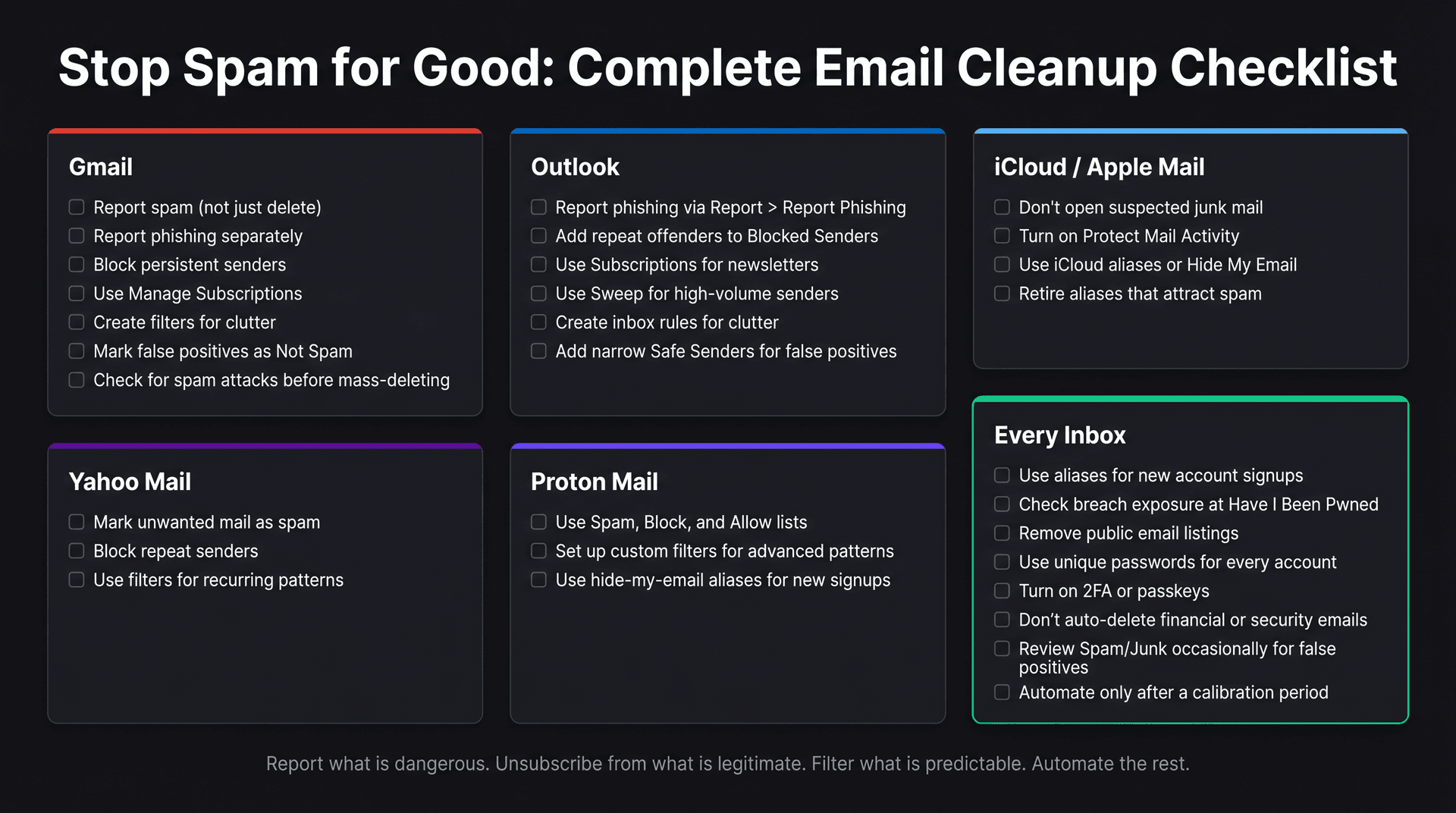
Gmail
-
Report spam (don't only delete).
-
Report phishing.
-
Block persistent senders.
-
Use Manage subscriptions for legitimate senders.
-
Create filters for newsletters, receipts, and notifications.
-
Mark false positives as not spam.
-
Watch for spam attacks: search for security alerts before mass-deleting.
Outlook
-
Report phishing with Report > Report phishing.
-
Add repeat offenders to Blocked senders and domains.
-
Use Settings > Mail > Subscriptions for newsletters.
-
Use Sweep for high-volume repeat senders.
-
Create inbox rules for predictable clutter.
-
Add narrow safe senders for false positives.
iCloud / Apple Mail
-
Don't open suspected junk mail.
-
Turn on Protect Mail Activity.
-
Use iCloud aliases or Hide My Email for signups.
-
Retire aliases that start receiving spam.
Yahoo Mail
-
Mark unwanted mail as spam.
-
Block repeat senders.
-
Use filters for recurring patterns.
Proton Mail
-
Use Spam, Block, and Allow lists in Filters.
-
Use custom filters for advanced patterns.
-
Use hide-my-email aliases for new signups.
Every Inbox
-
Use aliases for new account signups.
-
Check breach exposure with Have I Been Pwned.
-
Remove public email listings where possible.
-
Use unique passwords for every account.
-
Turn on two-factor authentication or passkeys.
-
Don't auto-delete high-risk categories (financial, security, legal).
-
Review Spam/Junk occasionally for false positives.
-
Automate only after a calibration period.
Spam is not solved by one setting. It's solved by a system: report what's dangerous, unsubscribe from what's legitimate, filter what's predictable, protect your real address, and automate the repetitive work.
If you want a faster path to a cleaner, quieter inbox, Inbox Zero handles the automation layer: bulk unsubscribe, cold email blocking, AI rules, and Gmail tabs. That means less manual work every week. That's how you stop spam emails for good.
What is the Inbox Zero Method & How do I Master It?
Discover the Inbox Zero method and learn simple steps to take control of your email inbox, stay organized, and boost productivity.

4 Email Productivity Hacks from Tim Ferriss, Andrew Huberman, and Sam Harris
Explore 4 powerful email productivity hacks from tech and wellness experts like Tim Ferriss and Andrew Huberman. Learn to create focus, optimize processing, manage time wisely, and delegate effectively to conquer your inbox.
Best Time to Send Emails for Response (2026)
Stop guessing when to send emails. Get data-backed timing strategies from 2026 research that improve response rates across all scenarios.
How To Organize Outlook Inbox? (2026 Guide)
Learn how to organize Outlook inbox with rules, folders, categories, and AI automation. Step-by-step guide for 2026 that actually works.